
Ready or Not: What’s Better, DirectX 11 or DirectX 12 (DX11 vs. DX12)?
Modern games often offer both DirectX 11 and DirectX 12 options, and Ready or Not is no exception. This choice can be confusing, especially for less tech-savvy players. While DirectX 12 is newer and *potentially* offers better performance, DirectX 11 is known for its stability. So, which should you choose?
DirectX 11 and DirectX 12: A Simple Explanation
Think of DirectX 11 and DirectX 12 as translators between your computer and the game. They help your GPU render the game's visuals. DirectX 11, being older, is simpler for developers to use, resulting in wider adoption. However, it doesn't always fully utilize your CPU and GPU's power. DirectX 12, the newer option, is more efficient, allowing developers to optimize for better performance. The trade-off is increased complexity for developers.
DirectX 11 or DirectX 12 for Ready or Not?
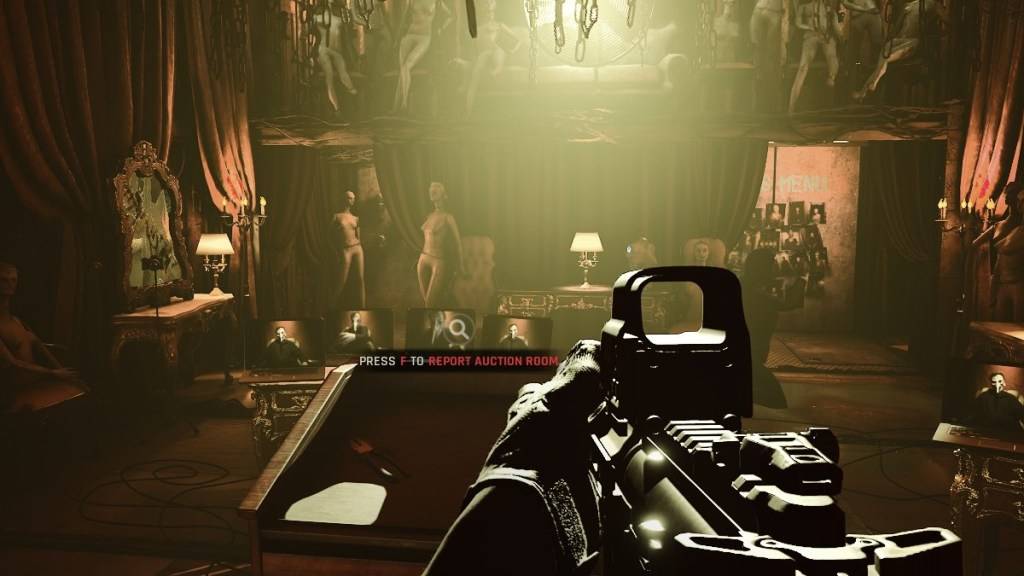
However, DirectX 12 isn't ideal for older systems. On older hardware, it can cause instability and even reduce performance. If you have an older PC, stick with the more stable DirectX 11.
In short: Modern system? Try DirectX 12 for potentially better performance. Older system? DirectX 11 is the safer bet.
Related: All Soft Objectives in Ready or Not, Listed
Setting Your Rendering Mode in Ready or Not
You'll usually be prompted to choose your rendering mode (DX11 or DX12) when launching Ready or Not through Steam. Simply select your preferred mode at the launch prompt. Newer PC? Choose DX12. Older PC? Stick with DX11.
If the launch prompt doesn't appear, follow these steps:
- In your Steam Library, right-click on Ready or Not and select Properties.
- Go to the General tab and find the Launch Options.
- Enter either
-dx11or-dx12in the Launch Options field, depending on your choice.
Ready or Not is available now for PC.
-
 The Future Games Show 2025 will showcase more than a dozen games as part of Summer Game Fest's main lineup. Continue reading for all the latest details about this upcoming event and what we currently know.← Back to Summer Game Fest 2025Future Games SAuthor : Anthony Dec 26,2025
 -
 Valhalla Survival has just rolled out a major new update, introducing fresh gameplay systems and challenges. Lionheart Studio has officially integrated a Hero Ascension System into the experience. On top of that, a huge array of new battlefield itemsAuthor : Simon Dec 26,2025

















- STALKER 2: Heart of Chornobyl - All Endings (& How to Get Them)
- Steampunk RPG Eldgear Unveiled by KEMCO
- NYT Hints and Answers: Guide to January 10, 2025
- Metaphor: ReFantazio - Complete Bond Guide
- Discover the Artifacts in Stalker 2: Locations and Acquisition
- Mushroom Go! Unleashes Co-op Dungeon Adventure for Fungi Fans